Your next digital workforce will not live in the cloud. It will run on your laptop.
Google recently released Gemma 4 — open-weight, Apache 2.0 licensed, built from the ground up for on-device agentic AI. Function calling, structured output, multimodal understanding (video, image, audio), and it runs on consumer hardware. Meanwhile, OpenClaude just gave us a Claude Code-style agent CLI that routes to any model — including local ones served through Ollama. No API keys. No cloud dependency. No token costs.
When you combine them, you get something that was not possible even six months ago: a fully autonomous, private AI workforce running on the machine you already own.
This guide walks through exactly how to build it — from first install to a working local agent stack — and what you can actually accomplish with it.
What This Stack Looks Like
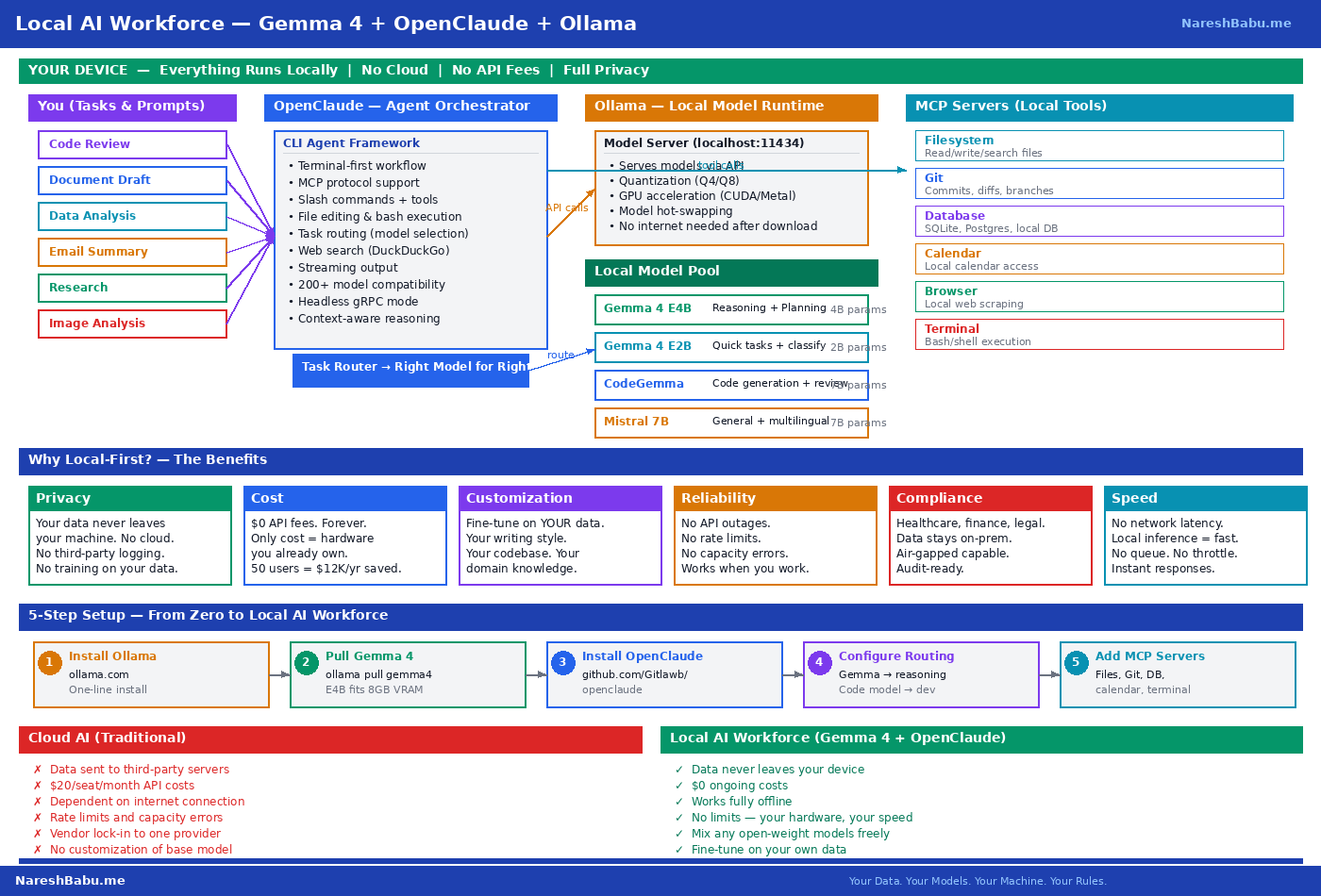
The architecture has three layers:
Ollama serves as the local model runtime. It downloads, manages, and runs open-weight language models on your hardware — no internet connection required after the initial model download. It exposes an OpenAI-compatible API at localhost:11434, which means any tool expecting an OpenAI endpoint can point at your local machine instead.
Gemma 4 is the intelligence layer. Google’s latest open-weight model family comes in two sizes that matter for local deployment: E2B (2 billion parameters) for quick lookups and classification, and E4B (4 billion parameters) for reasoning, planning, and multimodal tasks. The E4B model fits comfortably in 8GB of VRAM and outperforms GPT-3.5 on most reasoning benchmarks.
OpenClaude is the agent orchestration layer. It provides a terminal-first workflow with tool use, MCP server integration, slash commands, and the ability to route different tasks to different models. File editing, bash execution, web search — all running locally through your Ollama endpoint.
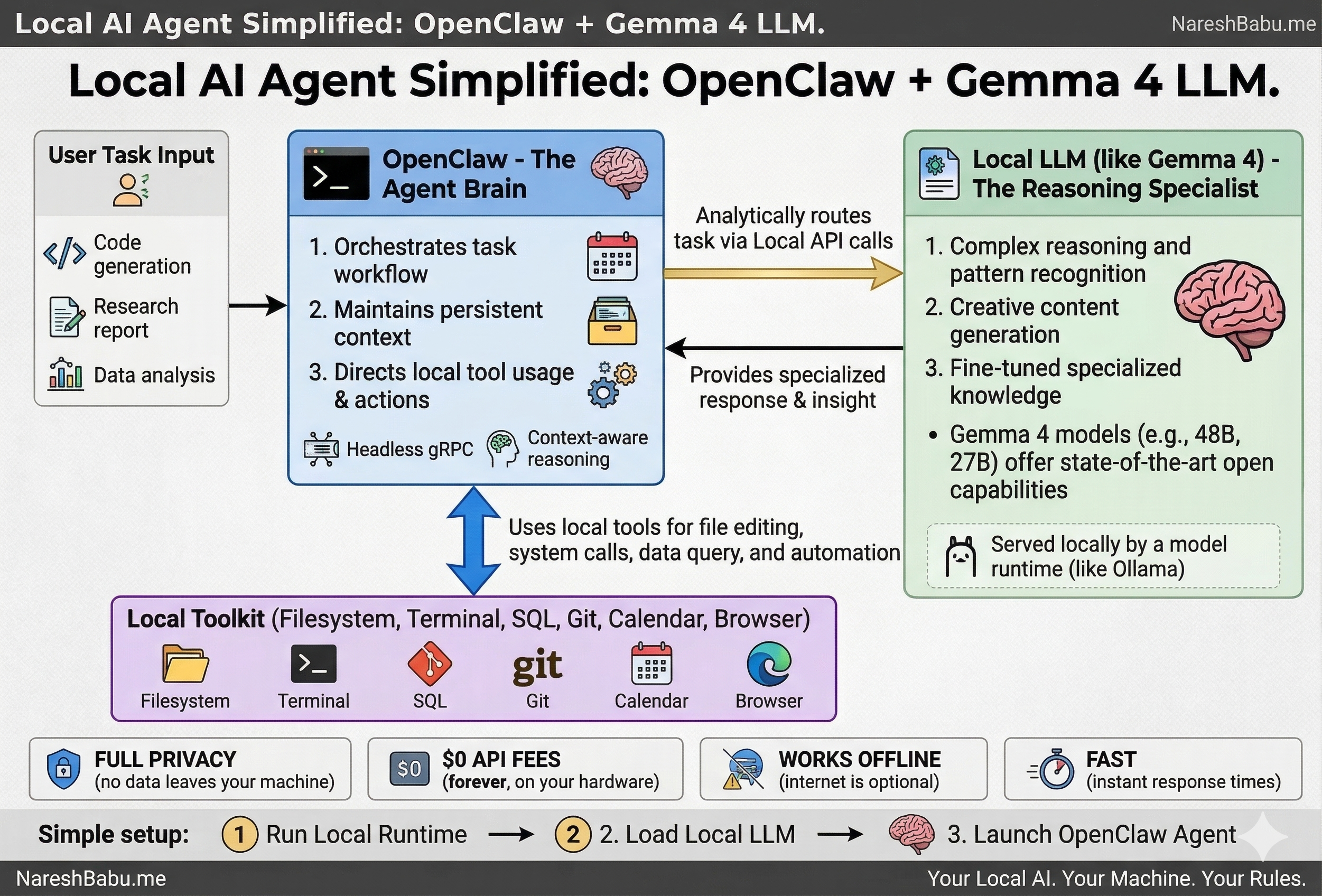
Together, these three components create a complete agent loop: you give a task → OpenClaude plans and orchestrates → Gemma 4 reasons and generates → local tools (filesystem, terminal, Git, databases) execute the actions → results feed back into the loop.
Why Local-First Matters
Before the installation guide, it is worth understanding why this approach changes the equation for individuals and small teams.
Privacy
Your documents, code, emails, and conversations never leave your machine. No cloud provider logs your prompts. No third-party model trains on your data. For anyone working with client information, proprietary code, financial data, or regulated content — this is not a nice-to-have. It is a requirement.
Cost
Zero API fees. The only cost is the hardware you already own. Cloud AI services typically run $20-30 per month per seat. Across a 10-person team, that is $2,400-3,600 per year. Across a 50-person team, it is $12,000-18,000. A local stack eliminates this entirely.
Reliability
No API outages. No rate limits. No “sorry, we’re at capacity” messages. No dependency on someone else’s infrastructure. Your AI works when you work — including offline, on a plane, in a coffee shop with unreliable WiFi.
Customization
Fine-tune Gemma on your own data. Your writing style. Your codebase. Your domain-specific terminology. The model becomes genuinely yours — not a generic tool that every competitor also has access to.
Compliance
Healthcare, finance, legal, defense, government — industries where data cannot touch third-party servers. Local-first is not a preference in these sectors. It is a regulatory requirement. A local AI stack lets you deploy AI capabilities without triggering data residency, cross-border transfer, or third-party processor compliance obligations.
Step-by-Step Installation Guide
Here is the complete setup, from zero to a working local AI workforce. This guide covers macOS (Apple Silicon), Linux, and Windows with WSL.
Step 1: Install Ollama
Ollama is the foundation — it manages and serves your local models.
macOS:
# Download and install from ollama.com, or use Homebrew:
brew install ollama

# Start the Ollama service
ollama serve
Linux:
curl -fsSL https://ollama.com/install.sh | sh

# Start the service
ollama serve
Windows (via WSL):
# Inside your WSL terminal:
curl -fsSL https://ollama.com/install.sh | sh
ollama serve
Verify the installation by opening a new terminal window:
ollama --version
# Should output something like: ollama version 0.6.x
Ollama runs a local server on http://localhost:11434. This is the endpoint everything else will connect to.
Step 2: Pull Gemma 4 Models
With Ollama running, pull the Gemma 4 models. You want at least the E4B model for general reasoning. The E2B model is optional but useful for quick, low-resource tasks.
# Pull the primary reasoning model (requires ~5GB download, ~8GB VRAM)
ollama pull gemma4:e4b

# Pull the lightweight model for quick tasks (requires ~1.5GB download)
ollama pull gemma4:e2b
Optional — pull specialized models for specific tasks:
# Code-focused model for development work
ollama pull codegemma:7b

# General-purpose multimodal model
ollama pull mistral:7b
Verify your models are available:
ollama list
# Should show gemma4:e4b, gemma4:e2b, and any others you pulled
Test that Gemma 4 is working:
ollama run gemma4:e4b "What are the three branches of the US government?"You should see a coherent response generated entirely on your machine. No internet required at this point.
Step 3: Install OpenClaude
OpenClaude is the agent layer that turns your local model into an autonomous assistant.
# Install via npm (requires Node.js 18+)
npm install -g openclaude

# Or if you prefer to clone and build:
git clone https://github.com/Gitlawb/openclaude.git
cd openclaude
npm install
npm link
Verify:
openclaude --versionStep 4: Configure OpenClaude to Use Your Local Ollama Endpoint
This is the key step — pointing OpenClaude at your local models instead of a cloud API.
Create or edit the OpenClaude configuration file:
# Create the config directory if it doesn't exist
mkdir -p ~/.openclaude

# Create the configuration
cat > ~/.openclaude/config.json << 'EOF'
{
  "provider": "ollama",
  "baseUrl": "http://localhost:11434",
  "models": {
    "default": "gemma4:e4b",
    "reasoning": "gemma4:e4b",
    "quick": "gemma4:e2b",
    "code": "codegemma:7b"
  },
  "taskRouting": {
    "planning": "reasoning",
    "analysis": "reasoning",
    "classification": "quick",
    "lookup": "quick",
    "codeGeneration": "code",
    "codeReview": "code",
    "general": "default"
  }
}
EOF
This configuration tells OpenClaude to:
- Connect to your local Ollama server (no cloud, no API keys)
- Use Gemma 4 E4B for reasoning-heavy tasks like planning and analysis
- Use Gemma 4 E2B for lightweight tasks like classification and quick lookups
- Route code-related tasks to a code-specialized model
Step 5: Add MCP Servers for Your Tools
MCP (Model Context Protocol) servers let your agent interact with local tools — your filesystem, Git repositories, databases, calendar, and more.
# Add filesystem access
openclaude mcp add filesystem -- \
  --root ~/Documents \
  --root ~/Projects

# Add Git integration
openclaude mcp add git

# Add terminal/bash execution
openclaude mcp add terminal

# Add SQLite database access (if you work with local databases)
openclaude mcp add sqlite -- --db-path ~/data/mydb.sqlite

# Add browser automation (optional)
openclaude mcp add browser
Step 6: Launch Your Local AI Workforce
# Start OpenClaude in interactive mode
openclaude

# Or start with a specific task
openclaude "Review the files in ~/Projects/myapp and summarize the architecture"
You now have a fully functional local AI workforce. Every query, every file read, every code generation — all happening on your device. Zero data leaves your machine.
Controlling Your Local Agent from Your Phone
One of the most practical features of this setup is remote access from your mobile device. Since Ollama and OpenClaude run as local services, you can expose them securely within your home network or through a tunnel.
Option A: Local Network Access (Home/Office WiFi)
If your phone is on the same WiFi network as your computer:
# Start Ollama bound to all interfaces (instead of just localhost)
OLLAMA_HOST=0.0.0.0:11434 ollama serve

# Find your computer's local IP
ifconfig | grep "inet " | grep -v 127.0.0.1
# Example output: inet 192.168.1.100
From your phone’s browser, navigate to http://192.168.1.100:11434 — you can now send tasks to your local AI from any device on your network.
Option B: Secure Remote Access via Tunnel
For access from anywhere (outside your home network), use a secure tunnel:
# Using Cloudflare Tunnel (free, no port forwarding needed)
cloudflared tunnel --url http://localhost:11434

# Or using Tailscale (zero-config VPN)
# Install Tailscale on both your computer and phone
# Your Ollama endpoint becomes accessible via your Tailscale IP
Pair this with a mobile-friendly chat UI (like Open WebUI or a simple web client) and you can send instructions to your local AI workforce from your phone while your laptop does the heavy lifting at home.
# Install Open WebUI for a mobile-friendly chat interface
docker run -d -p 3000:8080 \
  -e OLLAMA_BASE_URL=http://host.docker.internal:11434 \
  --name open-webui \
  ghcr.io/open-webui/open-webui:main
Open http://localhost:3000 (or your local IP on port 3000) from your phone’s browser — you now have a ChatGPT-like interface powered entirely by your local machine.
What You Can Actually Do With This
A local agent stack is not a toy. Here are concrete use cases that individuals and small business teams can run today — with zero cloud dependency.
For Individuals
Personal Research and Document Analysis Point the agent at a folder of PDFs — tax documents, insurance policies, contracts — and ask questions in natural language. “What are the exclusions in my home insurance policy?” “Summarize the key changes between my 2025 and 2026 tax filings.” The model reads your files locally. Nothing is uploaded anywhere.
Email Drafting and Communication Feed the agent your writing style (previous emails, reports, LinkedIn posts) and have it draft responses, proposals, or follow-ups. Fine-tune Gemma on your own writing and it learns your tone, your vocabulary, your preferred structure.
Code Development and Review Use the agent as a local pair programmer. It can read your codebase, generate new functions, review pull requests, write tests, and execute them — all through the terminal. With MCP Git integration, it understands your project’s history and branching structure.
Content Creation Blog posts, newsletters, social media content, presentations — draft and iterate entirely offline. The agent can research your existing content, maintain consistency with your voice, and produce publication-ready drafts.
Personal Finance Tracking Connect the agent to a local SQLite database of your transactions. Ask “What were my top 5 expense categories last month?” or “How does my Q1 spending compare to last year?” All computed locally on your data.
For Small Business Teams
Client Document Processing Law firms, accounting practices, consultancies — process client documents without sending sensitive data to third-party APIs. Extract key information, summarize contracts, flag inconsistencies, generate reports.
Internal Knowledge Base Point the agent at your internal documentation, SOPs, and policy manuals. New team members can ask questions and get accurate, contextual answers drawn directly from your company’s knowledge — without that knowledge ever leaving your servers.
Automated Reporting Connect MCP servers to your databases and file systems. Generate weekly status reports, financial summaries, or project updates automatically. The agent queries your data, formats the output, and saves the report — no human assembly required.
Code Review Pipeline For development teams, set up the agent as a first-pass code reviewer. It reads the diff, checks for common issues, flags potential security vulnerabilities, and posts a summary. All running on your local infrastructure.
Meeting Preparation Feed the agent calendar context and relevant documents before meetings. “Summarize the three proposals we received for the warehouse project and list the key differences.” It reads local files, cross-references, and produces a briefing document.
Customer Communication Templates Generate personalized responses to common customer inquiries using your company’s tone and policies — without exposing customer data to external AI services.
Data Entry and Classification Use the lightweight Gemma E2B model for high-volume, low-complexity tasks: classifying support tickets, categorizing expenses, tagging documents. Fast, private, and zero marginal cost per item.
Hardware Requirements: What You Actually Need
One of the most common questions: “Can my machine run this?”
Minimum Viable Setup (Gemma 4 E2B Only)
- RAM: 8GB
- Storage: 10GB free
- GPU: Not required (CPU inference works, slower)
- Use case: Quick lookups, classification, simple Q&A
- Expected speed: 5-10 tokens/second on CPU
Recommended Setup (Gemma 4 E4B)
- RAM: 16GB
- GPU VRAM: 8GB+ (Apple M-series, NVIDIA RTX 3060+)
- Storage: 20GB free
- Use case: Full reasoning, planning, multimodal, code generation
- Expected speed: 20-40 tokens/second on M-series Mac, 30-60 on RTX 3060+
Power User Setup (Multiple Models)
- RAM: 32GB+
- GPU VRAM: 16GB+ (RTX 4070+, M2 Pro/Max)
- Storage: 50GB+ free
- Use case: Multiple models loaded simultaneously, task routing, fine-tuning
- Expected speed: 40-80+ tokens/second
If you have an Apple Silicon Mac (M1/M2/M3/M4), you are in an excellent position — these chips handle local inference remarkably well thanks to unified memory architecture. An M-series MacBook Air with 16GB is genuinely capable of running this entire stack at conversational speed.
Local AI vs Cloud AI: The Real Comparison
| Dimension | Cloud AI (ChatGPT, Claude, Gemini) | Local AI (Gemma 4 + OpenClaude) |
|---|---|---|
| Data Privacy | Data sent to third-party servers | Data never leaves your device |
| Cost | $20-30/month per seat | $0 ongoing costs |
| Uptime | Dependent on provider availability | Works fully offline |
| Speed | Network latency + queue wait times | Local inference, no network delay |
| Rate Limits | Throttled during peak demand | No limits — your hardware, your rules |
| Customization | Limited to system prompts | Fine-tune on your own data |
| Compliance | Requires vendor DPA, audit trails | No third-party data processor |
| Frontier Reasoning | Best-in-class (GPT-4, Claude Opus) | Good enough for 80% of daily tasks |
| Massive Context | 100K-1M+ token windows | Limited by local VRAM |
The honest assessment: for 80% of daily tasks — email drafting, code review, document summarization, data classification, content generation — a local stack is already good enough. Often better, because it is faster and more private.
The 20% that still benefits from cloud APIs — frontier-level reasoning on novel problems, massive context windows, cutting-edge coding on complex architectures — can be routed to cloud when needed.
The smartest approach is local-first, cloud when necessary. Use your local stack for everything it can handle. Route the hard problems to a cloud API. You control the boundary.
Troubleshooting Common Issues
Ollama won’t start:
# Check if another process is using port 11434
lsof -i :11434
# Kill any conflicting process, then restart
ollama serve
Model runs slowly:
# Check available memory
free -h  # Linux
vm_stat  # macOS

# If low on VRAM, use the smaller model
ollama run gemma4:e2b
OpenClaude can’t connect to Ollama:
# Verify Ollama is running
curl http://localhost:11434/api/tags
# Should return a JSON list of your models

# Check your config.json baseUrl matches
cat ~/.openclaude/config.json
Model gives poor results:
- Ensure you are using E4B (not E2B) for complex reasoning tasks
- Be specific in your prompts — local models benefit more from clear instructions than cloud models
- Consider pulling a task-specialized model (e.g.,
codegemmafor code tasks)
What Comes Next
The gap between cloud and local AI is closing every quarter. Six months ago, running a capable agent locally was theoretical. Today, it is a 15-minute setup.
What makes this moment different is the convergence: Google releasing Gemma 4 with native function calling and tool use, the Ollama ecosystem making local model serving trivial, and OpenClaude providing the agent orchestration layer that ties it all together.
Your data. Your models. Your machine. Your rules.
The local AI era is not coming. It is here.
Resources to get started:
- Gemma 4 — Google AI Blog
- OpenClaude — GitHub Repository
- Ollama — ollama.com
- Run Gemma on phone via AI Edge Gallery — Setup Guide
- NVIDIA Local Acceleration for Gemma 4 — NVIDIA Blog
Have questions about setting up a local AI stack for your team? Reach out — always happy to share perspectives.